Search for and retrieve an order that should be canceled.
- When viewing an order with a Approved or On-Order status, the Cancel Order button displays.

Only orders with a status of Approved or On-Order can be canceled.
- Click Cancel Order.
- You may cancel all copies ordered or partially cancel.
- To cancel all copies ordered, select a Cancel Reason. You may also enter a Cancel Note.
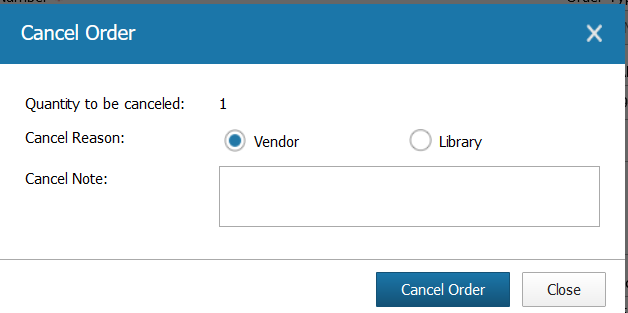
Click Cancel Order. - To partially cancel the order, click Partial cancel.
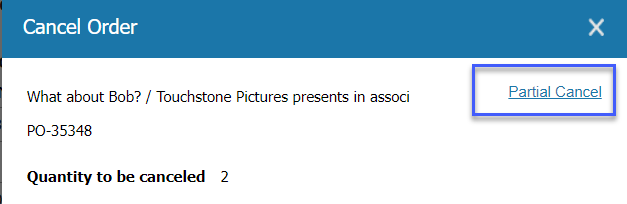
Enter a number of copies to cancel for a specific distribution.
Select a Cancel Reason and enter a Cancel Note, if desired. Click Cancel Selected Distributions.
- To cancel all copies ordered, select a Cancel Reason. You may also enter a Cancel Note.
- A warning displays. Click Continue to confirm the cancelation.
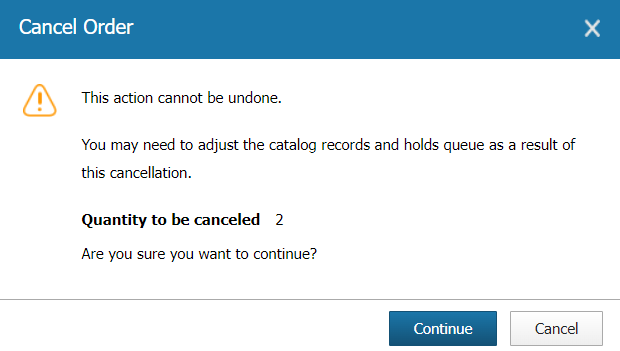
- The order is now canceled in full. Unlike deleted orders, information for canceled orders can still be searched and viewed. Any encumbered funds are immediately disencumbered from their associated budgets.
The order status is now Closed.
A cancelation message will NOT be sent to your vendor automatically, even if that vendor is configured with EDI.
Item records in Symphony WorkFlows will need to be removed manually. Canceling the order will not automatically remove them.