Order records contain two tabs - the Order tab and the Orderlines tab.
Order tab
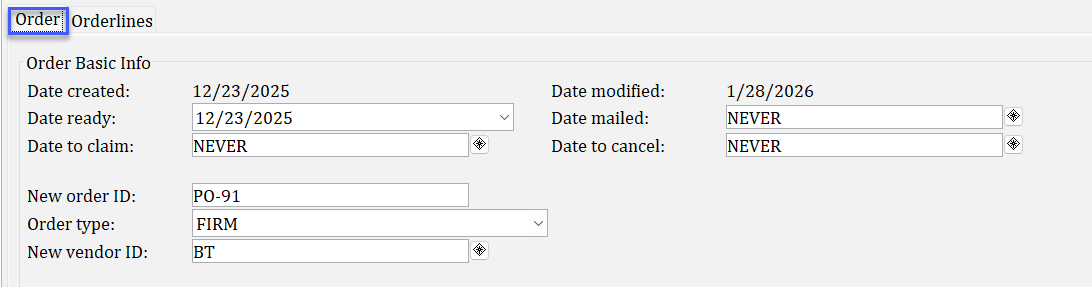
Order records contain a lot of fields. Some are system-generated, and some you will enter yourself.
Some fields can be edited by staff and some cannot. Sometimes, a field might be edited, but you should use caution when doing so.
Please see the chart below for a breakdown of the fields in the Order Basic Info section of the Order tab.
| Field | Information |
|---|---|
| Date Created | Displays the date the order is created. This date cannot be edited. |
| Date ready | Displays the date the order was marked "ready" and therefore complete. This date does not affect the EDI process and is used for reports only. This date can be edited at any time. |
| Date to claim | Displays the date the order is set to be claimed. Most libraries do not use this date and claim directly through their vendor, because it is a much more efficient means of claiming. |
| Date modified | Displays the date the order was last modified. This date cannot be edited and is instead updated by the system. |
| Date mailed | Displays the date the order was mailed or sent to the vendor. For non-EDI libraries who complete orders on their vendor's sites, this will not be automatically updated by the system. For EDI libraries, it is very important that the default is NEVER so the EDI reports will find and select the orders. The Book X12 Orders report updates the Date Mailed to the date the report runs. |
| Date to cancel | Displays the date the order is set to be cancelled. It is used for reports only. Most libraries opt not to use this field and instead cancel orders manually when receiving notice from their vendors. |
| New Order ID | Displays the current order ID. This field may be edited, but EDI libraries should not update order IDs once the order has been sent to their vendor. |
| Order type | Displays the order type of the order. SWAN recommends using FIRM for all orders. |
| New vendor ID | Displays the current vendor ID. This field may be edited, but EDI libraries should not update vendor IDs once the order has been sent to their vendor. |
Reminders for EDI libraries
Never edit the following fields after the order has been sent to your vendor:
- order ID
- vendor ID
Make sure the Date Mailed is set to NEVER for any orders you intend to send via EDI.
Orderlines tab
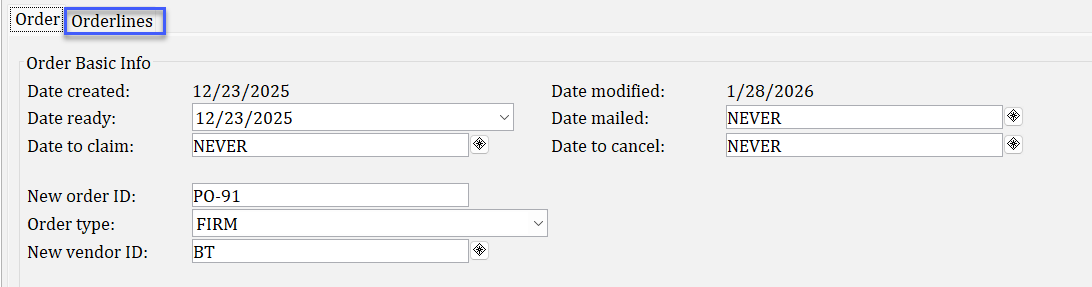
The Orderlines tab displays the orderlines on an order record.

When you display each orderline, you will see three tabs: Title Info, Orderline, and Segments.
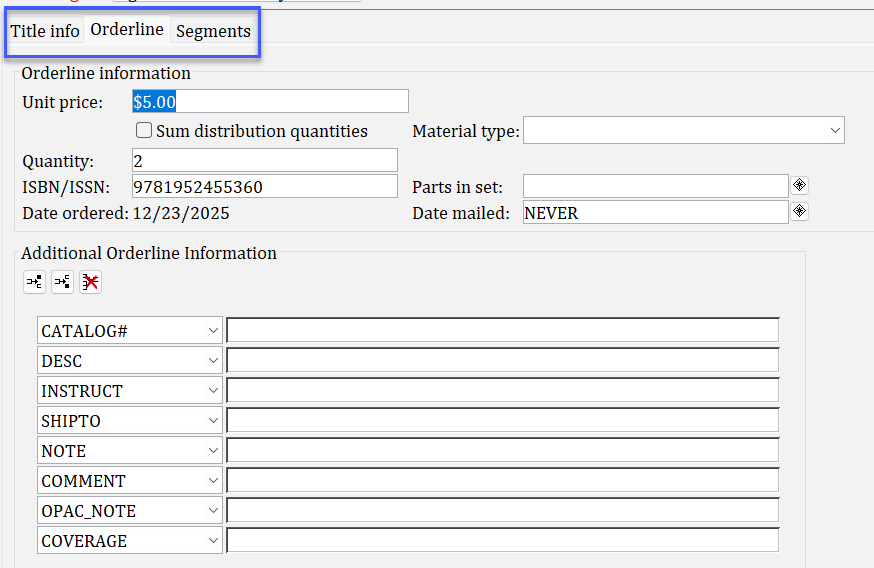
Title Info tab
The Title Info tab displays information about the title ordered.
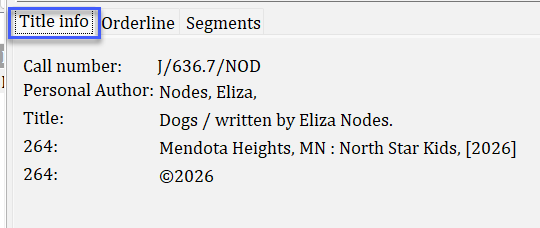
Orderline tab
The Orderline tab displays details about that orderline.
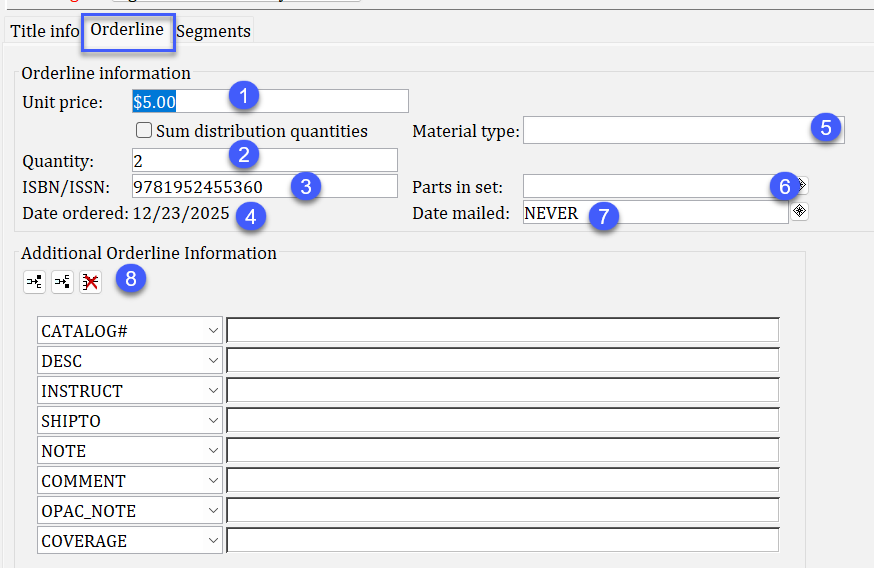
- Unit Price: the price of the title ordered
- Quantity: the quantity ordered
- ISBN/ISSN: the standard number associated with the title ordered
- Date Ordered: the date the order was created. This field cannot be edited and is system-generated
- Material type: not used
- Parts in set: not used
- Date mailed: this matches the Date Mailed in the Order tab and defaults to NEVER
- Additional Orderline Information: optional, free text fields that display to staff only
Segments tab
The Segments tab displays information about the funding and distribution for the orderline. It also houses important fields that impact the status of the orderline.
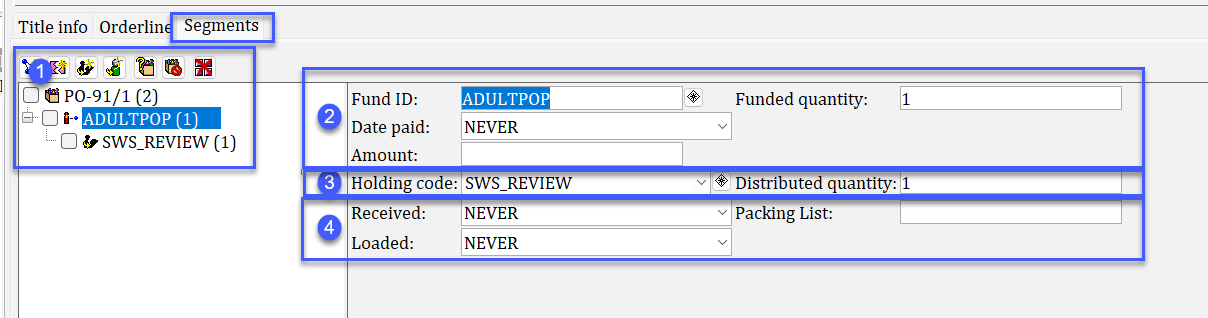
- The Order tree shows a breakdown of the orderline as it sits on the order and a summary of its funding and distributions.
- The funding section contains financial information like the Fund ID, quantity, and payment information.
- The distribution section contains the holding code and quantity.
- The received/loaded section is very important, as it holds dates for when the orderline has been received or loaded.
- Received: the date the orderline was marked received
- Loaded: the date the orderline was loaded into the system. This field must be filled in order for an order to be considered "closed". Open orders prevent items from being deleted from the system, so the Date Loaded field is very important.