You will need to have OPAC Administrator permissions to access to these settings.
Library System settings
You can access your library system settings under Primary Configuration > Library Systems.
Contact Links
Any contact and social media links you add here will generate linked icons the footer of the Aspen catalog and some will also appear in the Aspen LiDA app, including General Email Address.
Note: If you have set an email address in your Location settings, this will override the email set in General Email Address in the app.
Holidays and Special Hours
You can set special hours and closings in your Library Systems settings. These will appear in the web catalog and the app.
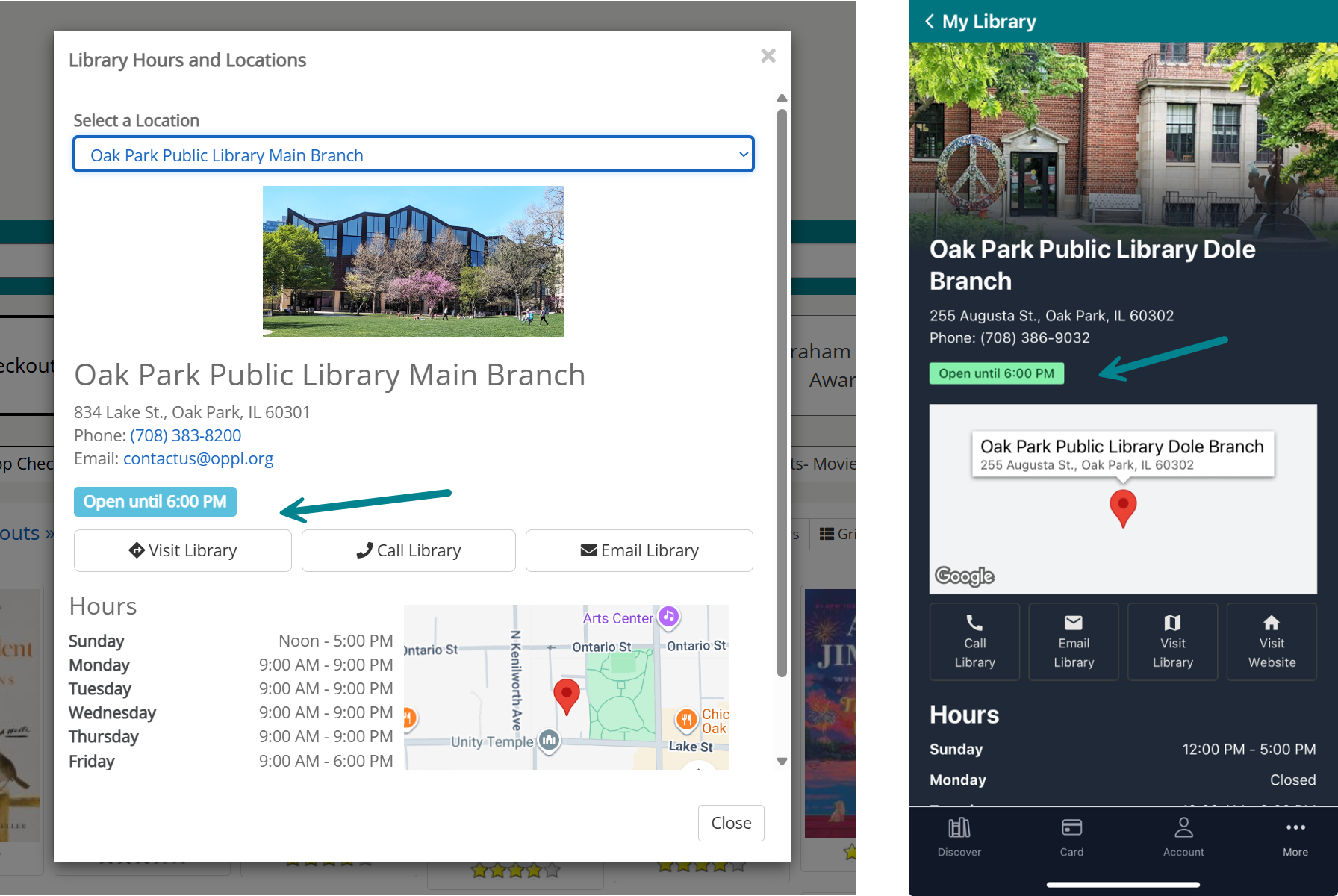
Note: SWAN recommends using system message banners as well for closings - they'll be more obvious to patrons and you can post them in advance of your closing and schedule to come down. They can also appear in the web catalog, app, or both.
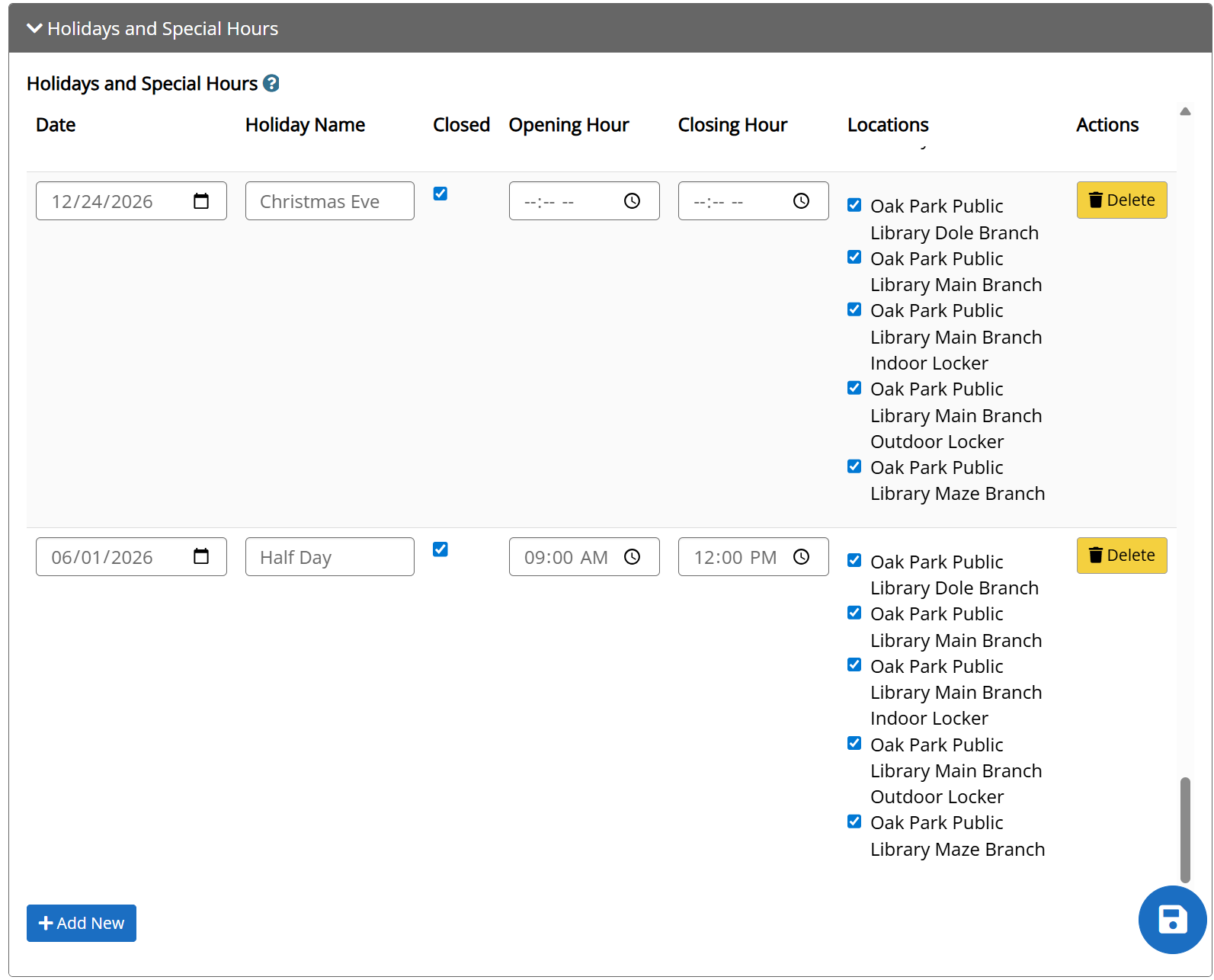
To configure closings:
- Go to the Holidays and Special Hours section in Library System settings
- Select Add New
- Fill in the Date with text or the date picker
- Fill in the Holiday Name - this will not appear to patrons
- Check Closed if you are closed all day, or fill in the Opening Hour and Closing Hour
- If you have multiple locations, check all that apply
- Save
Menu Links
Menu links will appear in the "hamburger" menu in your web catalog. To add a new link:
- Go to Library Systems > Menu Links.
- Click Add New.
- Optionally add a Category - items with the same category will group together in the menu.
- Optionally add a FontAwesome icon.
- Use the link to copy the name of the icon, e.g. address-card.
- Add Link Text - this will appear in your menu.
- Add a URL.
- Check Published to display the link.
- Select Show on to choose where to display the link
- Aspen Discovery only will show in just the catalog
- Aspen LiDA only will show in just the app
- Aspen Discovery + Aspen LiDA will show in both the catalog and the app
- Click Save Changes.
If you choose to check Show in Top Menu, we recommend limiting to 5 or fewer links. These links will appear above the search bar.
We do not recommend selecting Always Show Icon In Top Menu or Open In A New Tab due to the potential to negatively impact accessibility and usability especially on mobile devices.
Location settings
You can access your location settings under Primary Configuration > Locations. If you have multiple branches you can edit each branch.
Address
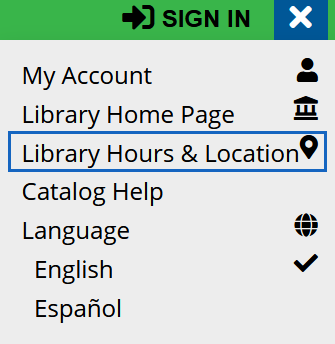
Update or enter the library building address. This will appear in your web catalog "hamburger" menu under Library Hours & Location and in the Aspen LiDA app under More > Contact.
Do not complete the latitude and longitude fields, save them as blank and the Google Maps API will load in the correct values for you. If for any reason you change the library’s address, please blank these values before you save the new address so they can be reset.
Phone Number
Optionally add a phone number to also appear in the menu under Library Hours & Location and in the app under More > Contact.
Hours
To add your library hours:
- Click Add New under Hours
- Select the Day of the Week, Opening Hour and Closing Hour
- Continue to click Add New to add more rows of hours
- Click Save Changes and Stay Here to ensure your hours saved properly
Hours will display in your menu under the link Library Hours & Location in the web catalog and in the app under More > Contact.