Usage dashboard
The Usage Dashboard shows general usage of Aspen.
- Go to Aspen Administration>System Reports >Usage Dashboard.
- In the Instance to show stats for, select your library catalog URL.
- Click View as graph if you would like to see these statistics in graph form.
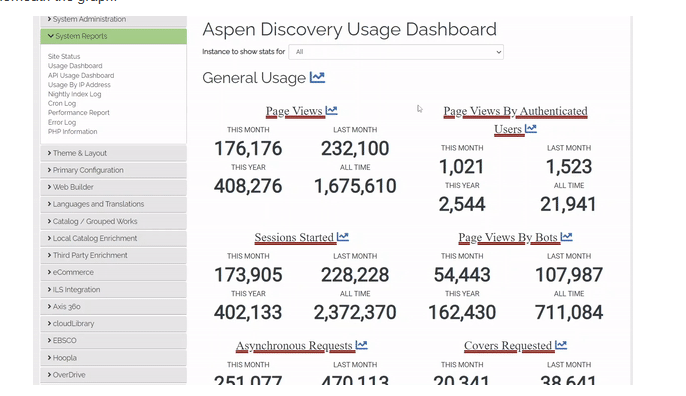
Usage dashboard glossary
- Page Views - Total number of pages shown that are not by a bot and not ajax requests (pop-ups). A user can have multiple page views during one session as they navigate through pages and search results.
- Page Views - by Authenticated Users - The exact same thing as above but by logged in users. Could be staff.
- Sessions Started - Close to number of visitors. If I go and access an Aspen site, if your cookies remember the site, then it will continue the previous session. If it is not remembered, it will create a new session. We're also trying to ignore ajax requests and visits from bots. Will also be less than page views.
- Page Views By Bot - We have a list of bots that we check against- Google bot, Bing bot, etc. that are out checking the web. We try to keep the list up to date but it is possible that we are missing some. If we are missing some, then these will be counted in page views.
- Asynchronous Requests - Showing a pop up or when we load menu data. When we load how many things you have checked out or on hold. Not something libraries are likely to report on.
- Covers Requested - Total number of book covers that we're showing on search result pages. Includes covers shown in the item record like "More Like This" and "Series".
- Grouped Work Searches - Total number of searches done.
- User List Searches - When a user searches from the "list" dropdown.
- Genealogy Searches - When a user searches from the "Genealogy" dropdown.
- Open Archives Searches - When a user searches from the "History/Archives" dropdown.
- Website Searches - When a user searches from the "Library Website" dropdown.
- Blocked Pages - Blocked pages from IP address configuration. Exp: if there was a bot causing an issue, you can block that IP address.
- Blocked API Requests - If someone was trying to make calls to the API without approval. If you see a high number, it's probably worth investigating, should be low.
- Errors - Whenever there is an error that pops up in Aspen, those are logged. This number should be low. We are monitoring and have alerts set for these.
- Web Resources - “Views” tracks clicks within Aspen's web resources and placards. “Views from Placards” tracks clicks only from a Placard.
E-resource usage dashboards
Each of your integrated e-resources -- including Overdrive, Hoopla, etc. -- has a dashboard that will show usage for that resource through Aspen.
Note: These statistics will not include usage from patrons directly accessing e-resources through their apps or websites. For full e-content reporting, check data available from the e-content provider dashboards.
- Go to Aspen Administration>[Resource Name] >Dashboard.
- In the Instance to show stats for, select your library catalog URL.
- Some e-resources have the option to View as graph if you would like to see these statistics in graph form.
E-resource dashboard glossary
- Active Users - Users within Aspen that have had successful check out or placed a successful hold
- Records With Usage - Records with usage is total number of unique titles that have been checked out or placed on hold. So that number should be less than the number of holds and loans combined.
- Loans - All successful checkouts in Aspen
- Renewals - Number of successful renewals in Aspen. Because a renewal is essentially a hold, some of those (the holds that were fulfilled and accessed via Aspen) are included in all time loans.
- Downloads - Downloads is the number of times the download button was clicked. So, if you have a user that is using Aspen to access the read online version, there would be one click for each time they opened the book OR if a user downloaded a title on one device but then needed it downloaded on another, that would result in 2 downloads for the same title.
- Options Updates - Updating their user preferences in Aspen's My Account
- API Errors - Anytime there is an error back when accessing a record; like when placing a hold or checking out and user receives an error; if you're noticing a lot of them, let us know; we're not automatically monitoring these
- Connection Failures - For example, OverDrive entire APIs are down; should be zero for everyone
Each E-resource also includes an Indexing Log.
Browse category usage statistics
You can view clicks on individual titles and the number of times a browse category was viewed.
- Go to Aspen Administration > Browse Categories
- Scroll all the way to the right of the table to view Titles Clicked and Times Shown
- You can optionally sort using the Sort By dropdown
- Tip: If you sort by ID Descending you will view the most recently added categories first
Browse category statistics glossary
- Times Shown - How many times that Browse Category was loaded. Each Browse Category has its own URL so each time one of these pages loads, it would be considered 1 Time Shown
- Titles Clicked - How many times someone clicked on a title in that Browse Category
- Dismissed - How many times someone has clicked xHide on that Browse Category. This feature is available to logged in users so that they can customize their Aspen home screen.
Aspen LiDA usage statistics
Statistics for the SWAN Libraries + app, SWAN's branded instance of Aspen LiDA, are available within the statistics for Aspen Discovery API Usage Dashboard and the Patron User Report.
The Patron Use Report includes statistics about downloads of the SWAN Libraries + app. These are only available at the consortium level.
- Downloads: Any download of the app, including repeat downloads
- New Users: Downloads of the app on a new device
- Holds Placed: Total holds placed across the consortium using the app or Aspen API
In the Aspen Discovery API Usage Dashboard:
- Go to Aspen Administration > System Reports > API Usage Dashboard
- Narrow to your library's catalog under View stats for.
- Use Ctrl/Cmd + F to search for one of the following statistics headings
- loginToLiDA: This is a count of logins to the LiDA app
- placeHold: This is a count of holds placed through LiDA
Indexing logs
All resources integrated into Aspen have an indexing log, including ILS records and e-resources.
ILS export log
To view this log, go to Aspen Administration > ILS Integration > Indexing Log.
This log displays the delta exports from Symphony. Aspen relies on these exports to update MARC records and ILS item statuses. If you make a change -- such as checking out an item -- you will need to wait for an index to run before you will see the change in Aspen.
One full export runs overnight and into the early morning. The following exports run every 5-10 minutes to process changes throughout the day.
Nightly index log
To view this log, go to Aspen Administration > System Reports > Nightly Index Log.
The nightly index processes configuration changes, which could include adding e-resources, changes to facets, changes to location and library system settings, or updates to the status or format mapping. In addition, the nightly index processes the Accelerated Reader data once a week.
It does not run every night -- only when there are configuration changes or AR data to import.The ILS export and the nightly index will not run at the same time, so if the nightly index is behind the ILS export will not start until it completes.
E-resource export logs
Go to Aspen Administration>[Resource Name] >Indexing Log
Each e-resource displays an export log. Just like the ILS export, e-resource exports must run to reflect changes in e-resource records and in checkout status, if the resource isn't simultaneous use.
OverDrive
Overdrive includes 3 indexes, one for each OverDrive consortium. You can identify the consortium using the Setting ID:
- 1 = eMedia Library
- 3 = Media On Demand
- 8 = Digital Library of Illinois