Using Masquerade mode, library staff can:
- Assist a patron in navigating search results
- Assist a patron with questions about their account
- Place holds for a patron
- Reset a patron's PIN
Accessing "Masquerade" mode
- From your library's Aspen catalog, login with your staff account (note: this is not a barcode)
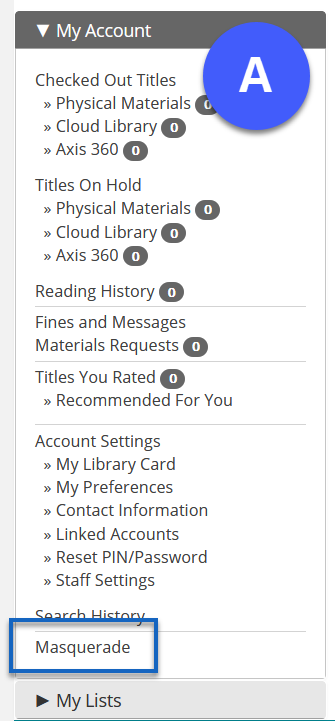
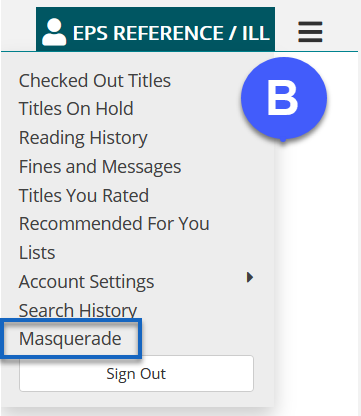
- You can access Masquerade mode from two places:
- My Account landing page toolbar menu.
- By clicking your username to reveal the My Account quick-access tools.
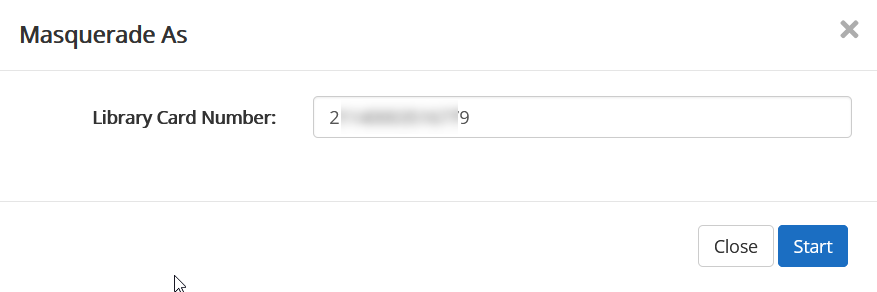
- Enter the patron's Library Card Number at the prompt.
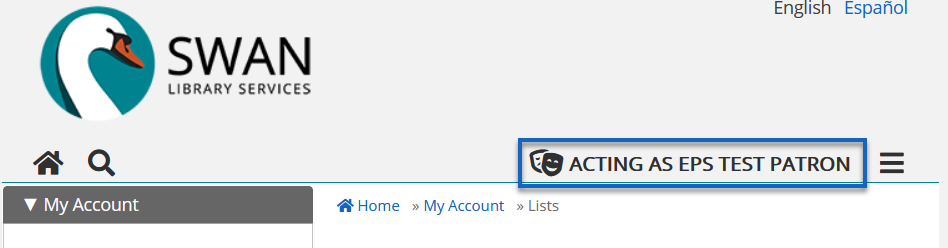
- The account name now displays Acting As.
Useful tips
- Masquerade mode will automatically sign out after 3 minutes of inactivity.
- Masquerading as a patron will not update the Last Activity Date, unless you place a hold or take action on the account.
- Library staff with an OPAC Administrator account can masquerade as other library staff accounts within their library; Library staff cannot masquerade as library staff accounts for other libraries.