Your library can opt in to use Scan & Go, the self check feature in the SWAN Libraries + app. This feature allows patrons to check out items through their mobile device.
Scan & Go is in public beta for the pilot libraries starting November 2026. It will be available for wider use in January 2027.
Patrons must allow the app to access the device's camera to use this feature.
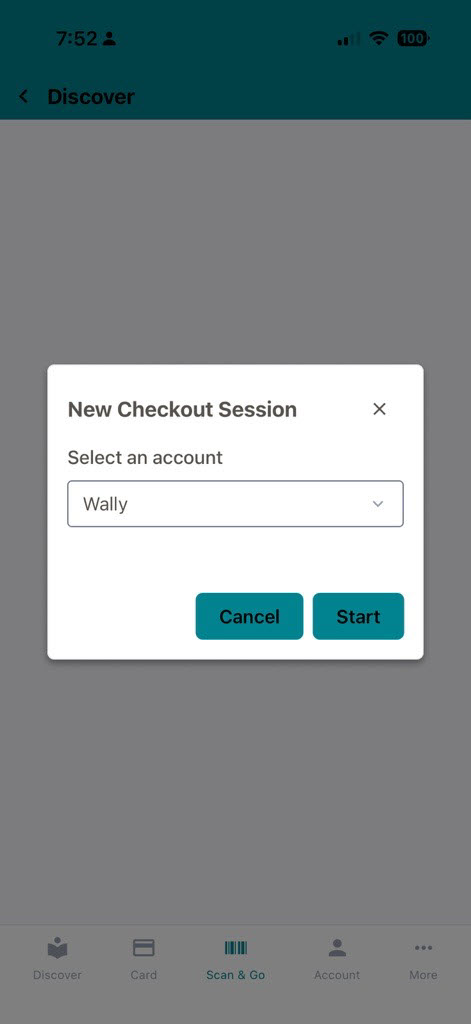
Patrons with linked accounts will have the option to select the account to check out to.
Patrons can check out multiple items in one session.
The app will not disable RFID tags.
Note: Use of Scan & Go is not restricted by geolocation.
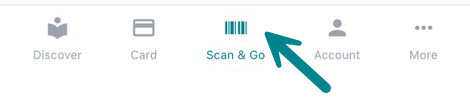
The Scan & Go icon will appear once it is enabled for your library.
When patrons start a new checkout session, they can select from their linked accounts.
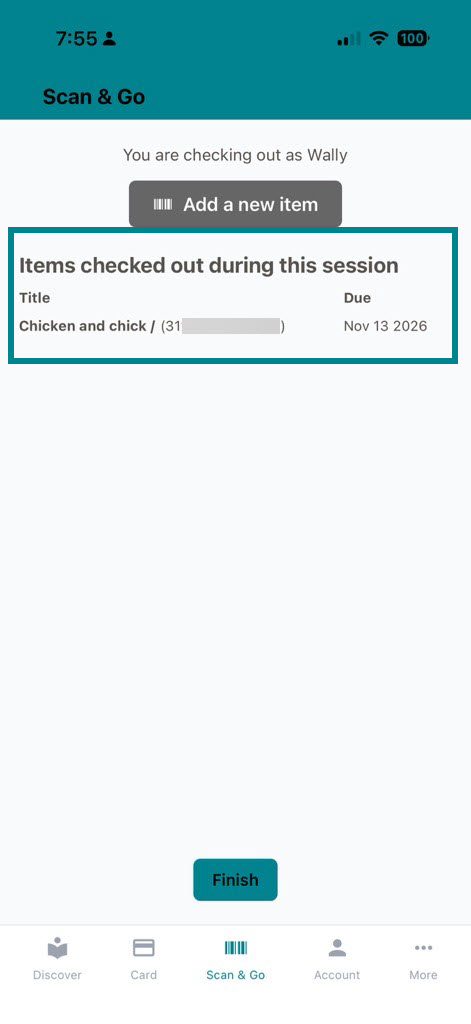
Items checked out will appear in a confirmation screen.
Checkout attribution
Scan & Go uses the Symphony Web Services API to check out items.
Checkouts are attributed to the current Item Location. This ensures that items a patron is picking up from an open holds shelf are correctly attributed to the location the patron (and the item) are physically located in.
As an example: If a patron from Home Library A picks up their holds at Library B, and an item has come from Library C, the checkout in Scan & Go will be attributed to Library B.
Check out overrides
The app will block checkout of items checked out to another user, but the following checked out locations are overridden to allow checkouts of items checked out to certain generic users:
All users starting with DISP
STAFFPICKS
ONSHELF
BEYONDBKS
UPPERLEVEL
The app will also allow checkouts of items in transit, with the assumption that the item was in the stacks my mistake.
Check out error messages
Patrons may see the following checkout error messages. In most cases, these indicate the item cannot be checked out, or an additional check is needed at a staff desk.
Message
Notes
This item is on hold for someone else, or it cannot be checked out
Prevents users from checking out another patron's hold currently on an open holds shelf.
A copy of this title already checked out to you, see a staff member to checkout additional copies.
Appears if the patron attempts to checkout multiple copies of an item on the same record. This does not appear for records with volumes (i.e. magazines).
See library staff. This item was reported as lost.
Item is marked as LOST.
See library staff. This item has multiple pieces to check before checking out.
Item has multiple pieces.
See library staff. Could not find an item with that barcode, unable to checkout item.
Appears if there are issues scanning a barcode or the barcode is not found in the system.
See library staff. This item is currently checked out to someone else.
Blocks checkout of items checked out to another patron.
See library staff.
Fallback error message that most likely will not display.
This title is already checked out, cannot check it out again.
Appears if the title is already checked out to the patron.
This title is for in library use only.
Displays for reference materials, etc.
You have checked out the maximum number of items of this type. See library staff.
This appears if a user has reached the system maximum for console games.
No more checkouts allowed.
This appears if the user has reached their maximum number of checkouts.
Your library card is expired. See library staff.
Appears for users with an expired card.
Your account has too many overdue titles to check out this title. See library staff.
Appears for users who have reached the maximum allowed overdues.
Your account is blocked. See library staff.
Appears for users with any blocking status on their account.
This item must be checked out to a parent/guardian.
Appears for users in Symphony user groups only.
Statistics
Statistics for usage of Scan & Go for checkouts appear in Aspen Administration and in BLUEcloud Analytics.
BLUEcloud Analytics attributes checkouts through Scan & Go to the Client Type of Patron Web Services Client.
Counts in Aspen are available in Aspen Administration > API Usage Dashboard > checkoutItem