MessageBee report digest
The MessageBee Report Digest is sent to each library's aliased xxx@swanlibraries.net email address and provides a summary of all failed messages sent to patrons who checked out from your library the previous day. Included as part of this digest is a CSV file of failed messages. You can use this report when patrons tell you they have not received their notices.
The report digest consists of an Excel spreadsheet and includes either email or phone (depending on the patron’s preferred notice method), the patron’s barcode, the failure reason, the date, and the specific notice that failed.

Library staff does not need access to the MessagePortal to process failures. They can follow normal procedures for communicating with the patron and updating the patron’s record.
If your errors are from SMS and you are not able to reach the patron immediately to update, remove the information from the SMS tab and enter a note explaining why it was removed. The patron can then opt in again using the Text Message settings section of My Account on Aspen.
Detailed User Search
You can search on an individual user’s notice delivery history for your library. This is helpful when a patron comes to the desk and says they haven’t been getting notices. This can easily help with identifying what the issue may be.
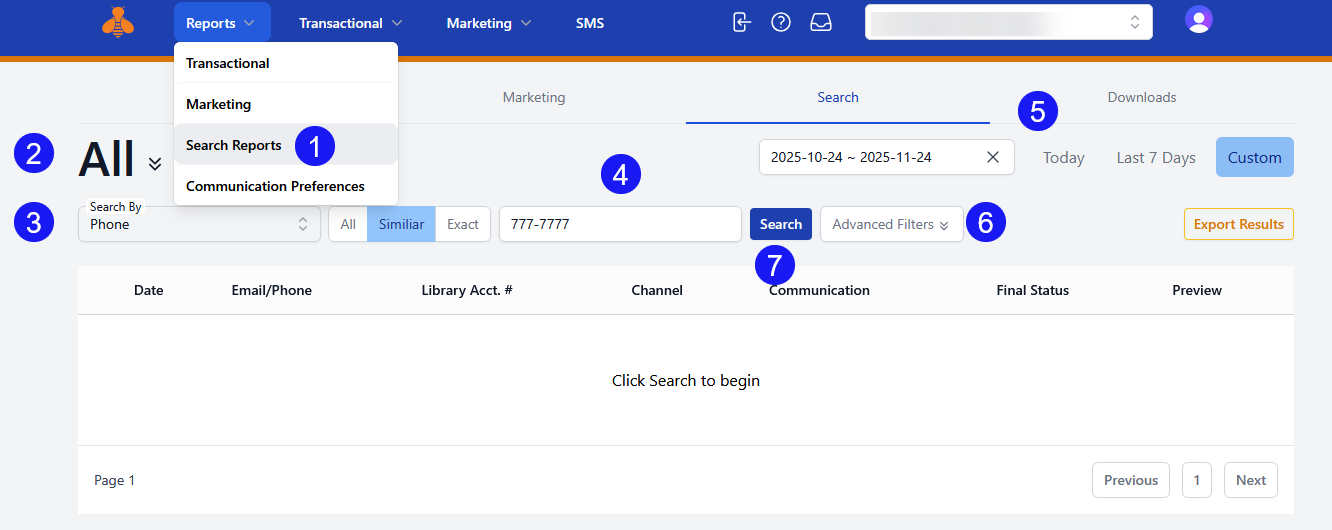
New Portal:
- Select the Search Reports option from the Reports menu
- Optional: Narrow down which notification type and communication methods
- Select search by method
- Enter search term
- Select the date range
- Select Email status, recommended to leave as all
- Select Search
Legacy Portal:
- Select the search method (Email, Phone, or Patron’s Barcode).
- Enter the search term, either the patron's email address, phone or barcode.
- Select the desired type of notice (bill, overdue, holds, etc). Under subtype the specific library notice templates. Note, that you can leave either of these blank to search for all notices generated from your library.
- Use the calendars to select the desired date range.
- Select Search
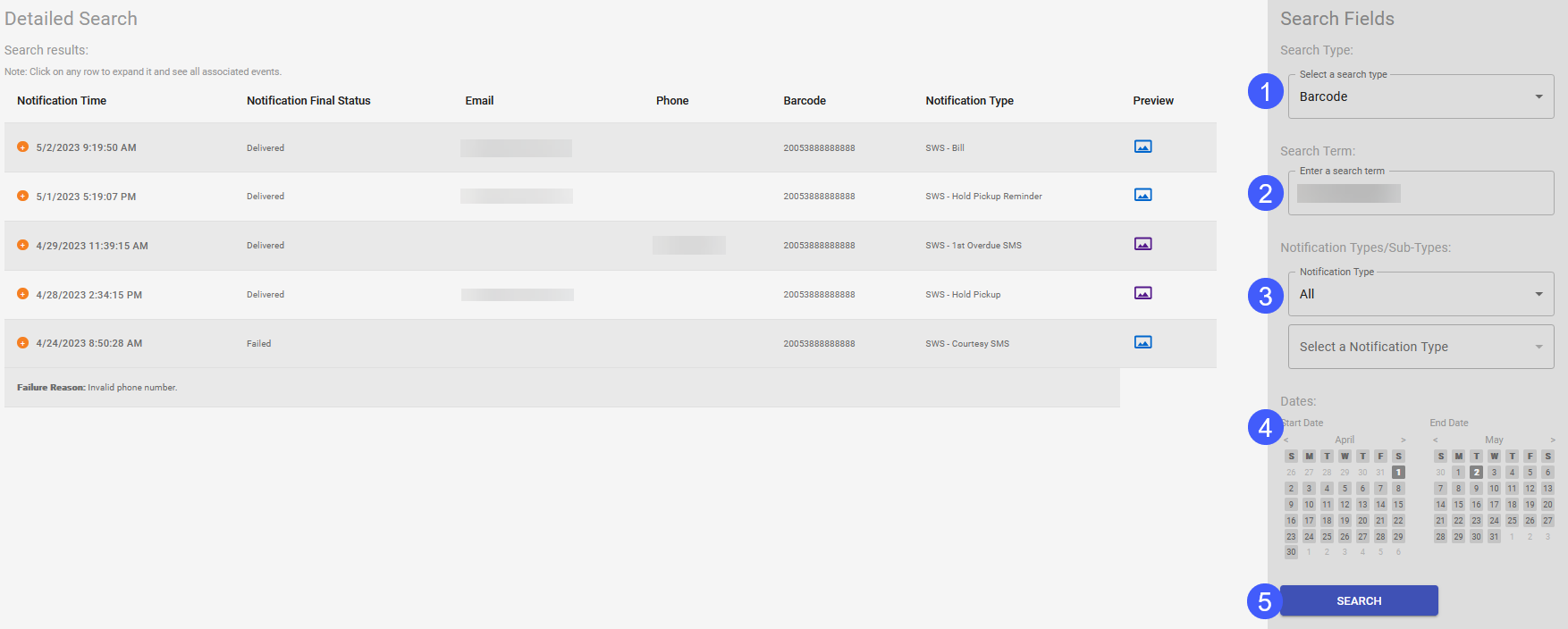
Pay close attention to the Notification Final Status column. If it has a status of Failed, you will want to confirm with the patron that you have the correct information. If the status is Failed but was reported as SPAM, the patron will have to make the sender safe and library staff will need to contact Unique. If the status is Block or Unsubscribed, and the patrons want to continue receiving notices via SMS library staff should contact Unique to get unblocked.
Steps to contacting Unique are outlined below in Opening a Ticket with Unique
By clicking on the icon under the Preview column you can view the notice generated for the patron.

Communication preferences
The Communication Preferences module in the MessageBee portal allows library staff to see who has blocked notices. Library staff will need to open a ticket with Unique to request a patron be unblocked. Do this only after you’ve contacted the patron and ensured they’ve removed any blocks on their end. These types of blocks can occur when the patron has marked their message as SPAM.
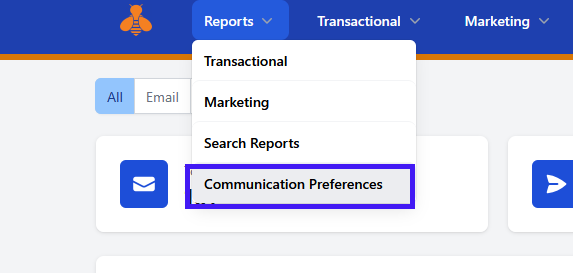
New Portal
Click the Reports menu and select Communication Preferences
Legacy Portal
Click on the Retrieve Report Data button to see who has set to block notices coming from MessageBee.
Opening a ticket with Unique
In the upper right-hand corner click on the question mark icon.

If taken to the help click the New Support Ticket link.
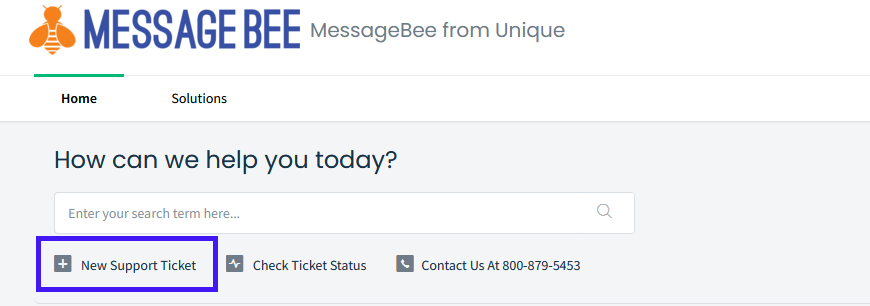
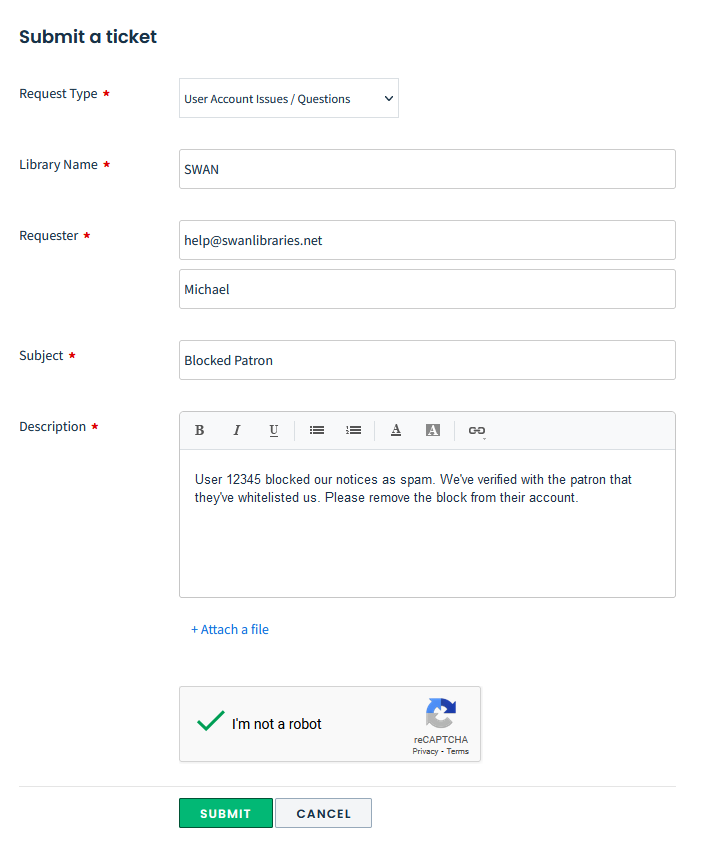
Fill out the information including the CAPTCHA and click Submit.
Phone number for PHONE notifications
1-877-662-8190 OR
Your library's main number (by request)
SMS phone numbers
Each library's notices are sent from a unique phone number. The phone number assigned to each library can be referenced in the following spreadsheet.