If a patron responds to a text message they have received you will be notified in the upper right-hand corner

Click on the icon and then on SMS Messages text (New MessageBee Portal)
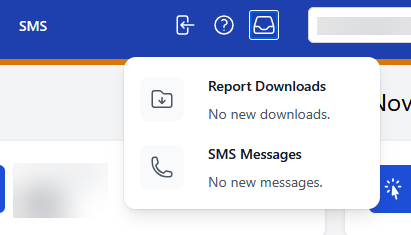
For the legacy portal select the SMS messages on the left side of the screen

You will be directed to another screen with SMS messaging. Staff can select the message they want to respond to and enter the message and press send.
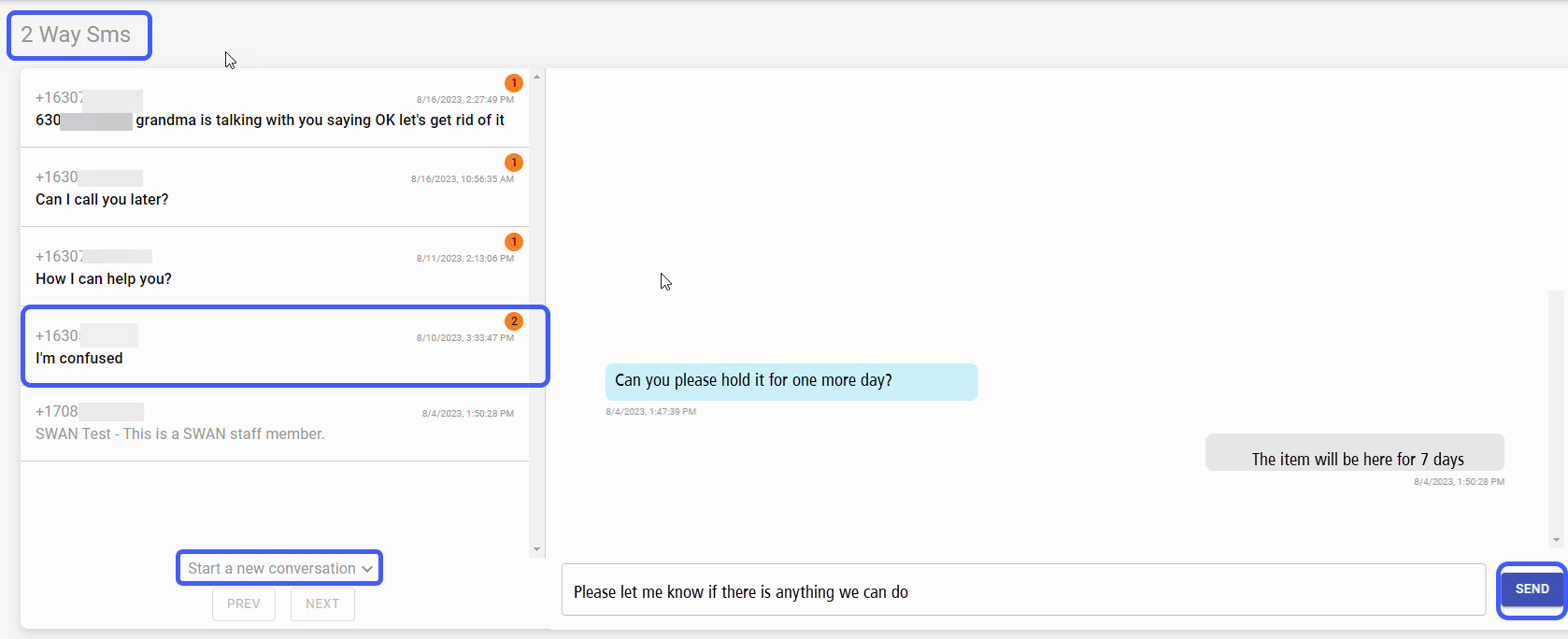
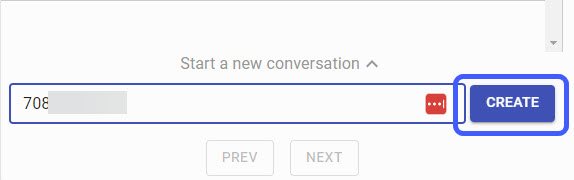
If staff needs to start a conversation, press the "Start New Conversation" button. Enter the phone number and begin the chat.
Opting out
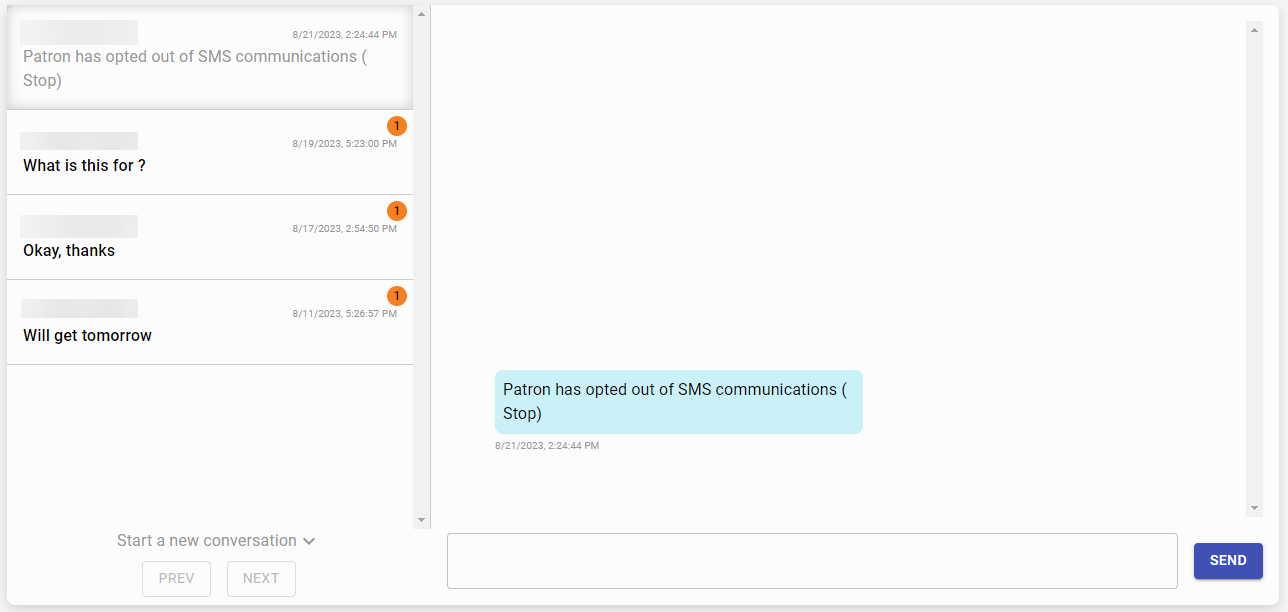
Patrons may opt out of SMS text messages by texting "STOP" in response to a notification. If a patron opts out of receiving messages, staff will be notified in the portal.
The message will appear among the SMS conversations. Even if you do not plan on responding to patron text messages, it is a good idea to check this space for opt-out commands.
Opting out using this method only prevents messages from being sent from that specific library's phone number. For example, if a patron texts "STOP" in response to a notification from Library A and checks out materials from Library B, they may still receive SMS notifications from Library B.
Furthermore, Symphony will still attempt to send SMS notifications to this patron, but they will not successfully reach the patron.
For these reasons, we recommend that staff go into Workflows and remove the patron's SMS settings so they receive notifications by email instead and do not miss out on important information.
Blocking Numbers
If you find your portal is receiving messages that are inappropriate, SPAM or not patron related you can block that number. Select the message on the left-hand side. Then click the Block Number button in the upper-right hand corner. This will only block communication in the 2-Way SMS Communication tool. It will not prevent notices from going out to that phone number.
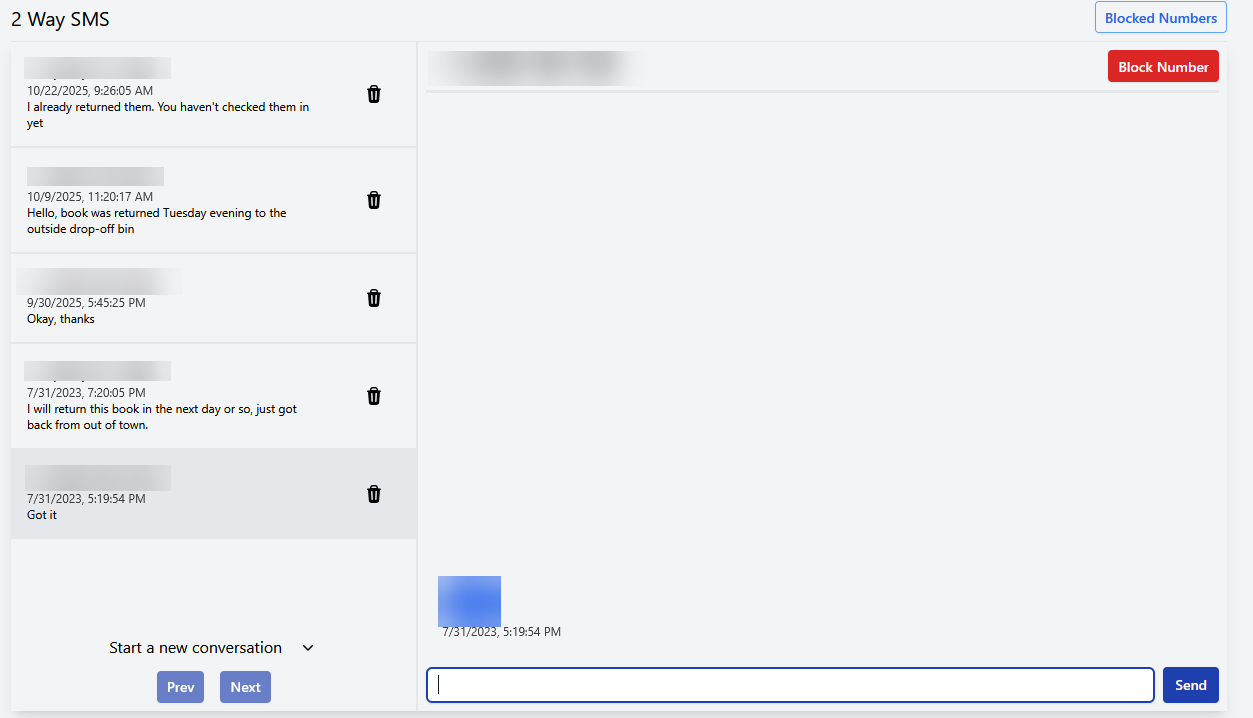
To view Blocked Numbers click the Blocked Numbers button.
Identifying patrons
When a patron sends a text message, only their phone number is visible. It is not possible to look up a patron by SMS phone number in Workflows. (Often the SMS phone number will match the regular phone number in the patron record, but this may not always be the case.)
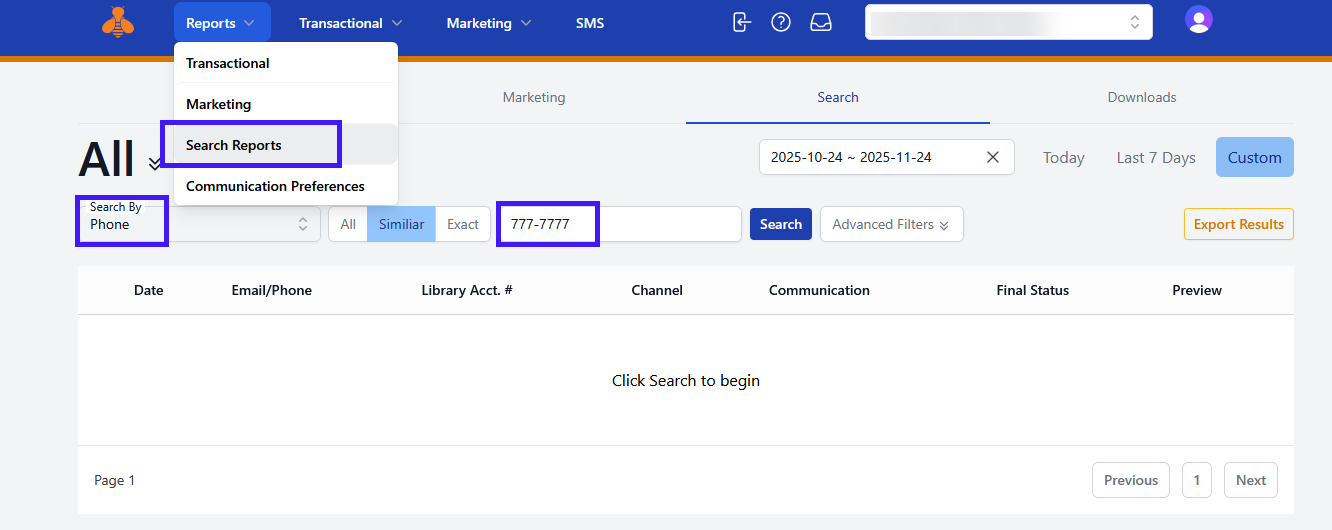
If you need to identify the patron, we recommend searching for the phone number in the MessageBee portal. This will retrieve a record of past notifications using that number, including the patron barcode. You can use the barcode to access the patron record in Symphony.
New Portal:
Legacy Portal:
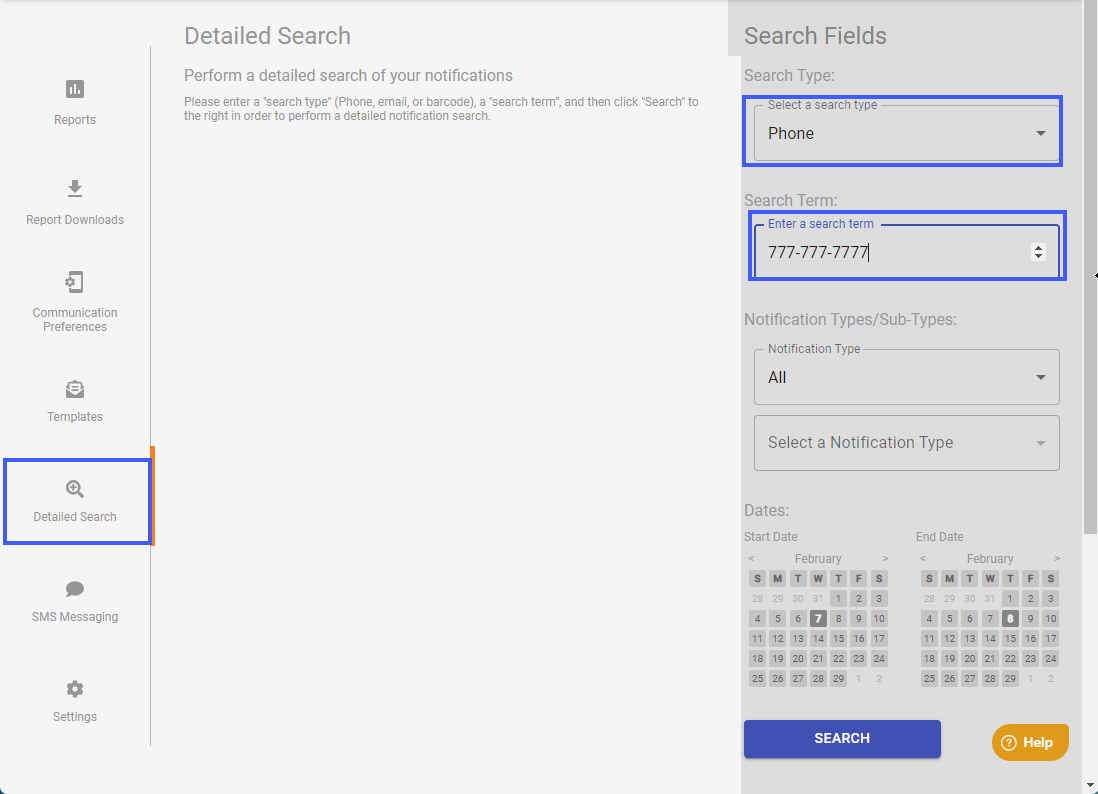
Be sure to use a generous date range to better ensure you retrieve results.