
Add home screen links
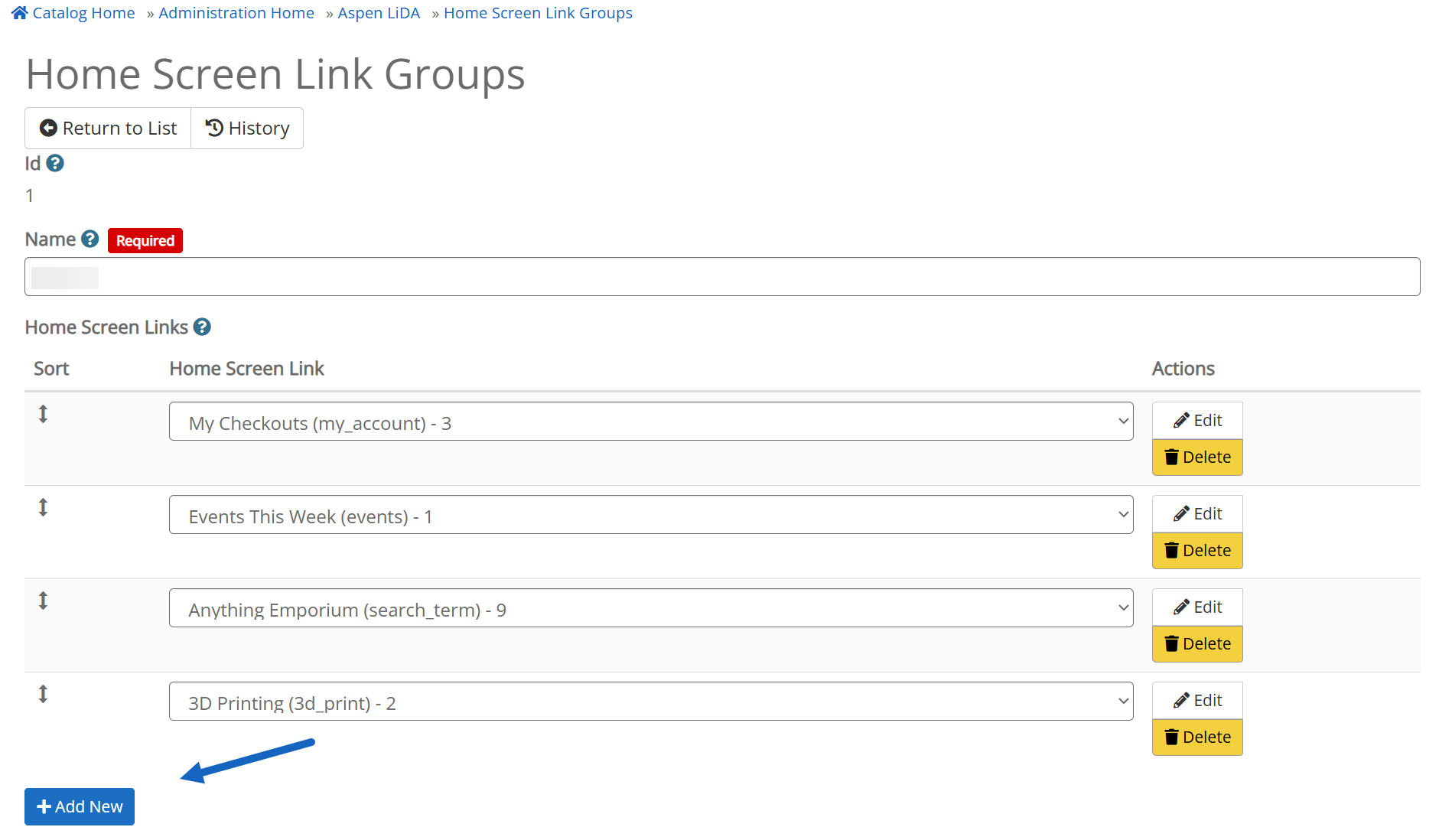
- Navigate to Aspen Administration > Aspen LiDA > Home Screen Links and select Add New
-
Add a Title: This is the text that will display on your home screen link button
Image: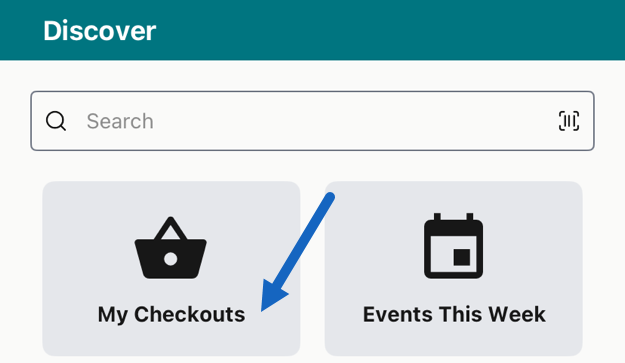
- Add a textID: This can be anything helpful to you to identify the setting, but it should be unique
- Share With: Leave set to Selected Library
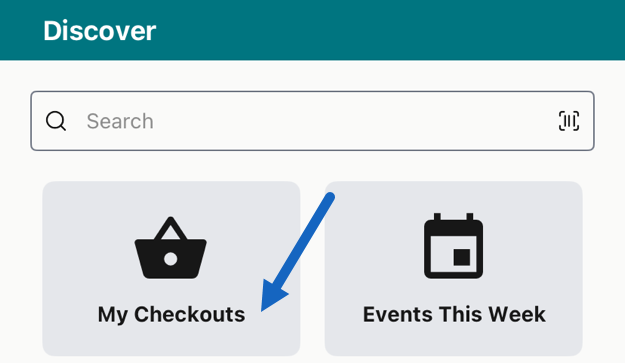
Add an icon
In Type of Icon you can either upload your own icon or select a Material icon. If you don't add an icon, you will see a generic link icon on the app home screen.

Image upload
When selected, opens an Upload an Icon field. Click the Select an Image button and upload an image from your device. Recommended size is 52 x 52 pixels.
Material icon
When this option is selected, opens a Google Material Icon Name field.
Enter the icon name from the Material Symbols and Icons in the text field. The value will be all lowercase with underscores instead of spaces for multi-word icon names (e.g., check_circle, manage_accounts).
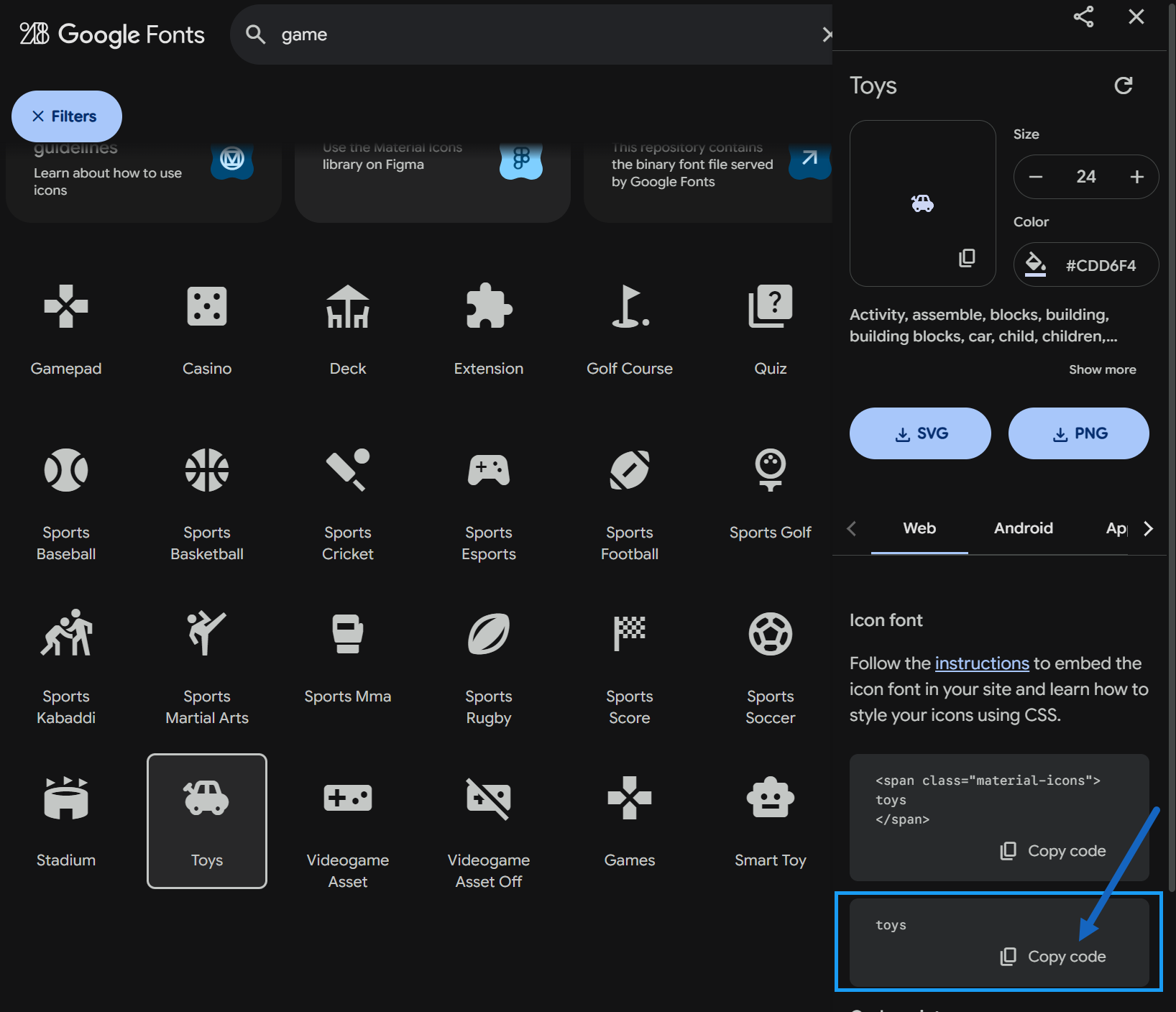
Set the on tap behavior
In On tap, send user you set what happens when your link is tapped.
An external website
Use this option if you want to link to a page on your website, events calendar, etc. When selected you will have the option to enter the External URL.
In External URL, paste in a URL such as https://mylibrary.org/events
A specific screen in the app
Use this option to link to screens in the app, such as My Checkouts. When selected, you will have the following options.